


AI can give you a tidy summary of any lecture. It can’t understand it for you.
These days you can record a lecture and have five neat bullet points a minute later. It feels like the hard part is done.
Then the exam asks you to explain how something works, not just list what it is. Five bullet points won’t get you there.
Here’s how to use AI for what it’s good at, still learn the material yourself, and make revision a lot less stressful.
What AI is good at
AI summaries are really useful. They give you a quick recap of a long lecture, show you the main topics at a glance, and save you from going back through everything you heard.
Used well, they give you more freedom to listen and think during the lecture, rather than trying to capture every word.
What it can’t do for you
It can’t understand it for you. Putting an idea into your own words is a big part of how it sticks. Reading someone else’s summary isn’t the same.
It doesn’t know what mattered to you. The part you found confusing. The moment your lecturer said, “This will come up in the exam.” A summary treats them like everything else.
It doesn’t always get it right. A summary can drop the “but” that changes the meaning, or mix up two ideas that sounded alike.
That’s why keeping the recording matters. When you’re not sure, you can go back and hear exactly what was said.
A setup that works
Before the lecture. Start a note with the module and the week, so it’s easy to find later. Check your university’s rules on recording lectures, and ask your lecturer if you’re not sure.
During the lecture. Hit record. When Noted asks “Transcribe live as you record?”, tap Start, and every word appears on screen as it’s said. Live transcription needs iOS 26 or later.
Then listen. Write a few lines in your own words, mostly what isn’t on the slides: the examples, the explanations, and the parts you want to come back to. Everything you type is linked to that moment in the recording.
When something sounds important, add a TimeTag. Type # and a word, like #exam or #definition.
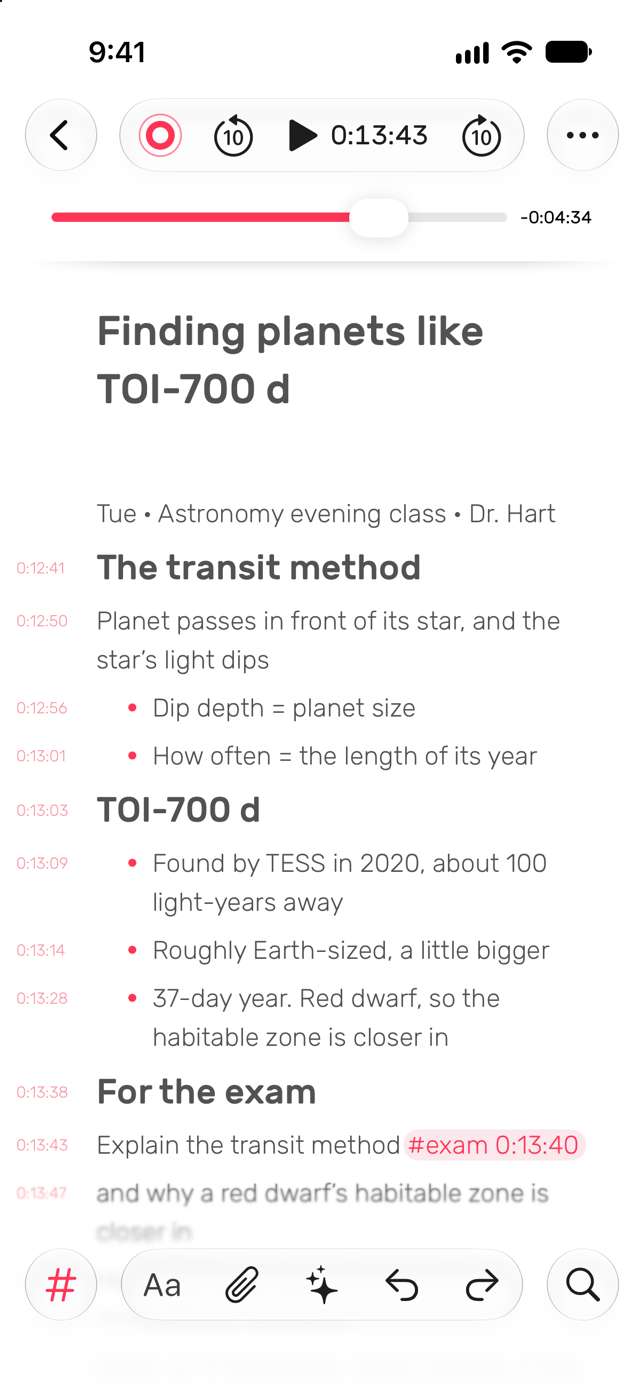
After the lecture. Tap ✨ and choose Summarize Note for a quick recap: an overview, the key points, and anything to follow up on. Each point has a timestamp, so if one doesn’t quite make sense, tap it and hear the explanation again.
The night before the exam
It’s late. You’ve got three weeks of lectures to get through and one evening to do it.
Instead of rewatching hours of recordings, open the module and start with your #exam tags. Tap one, hear the explanation, and move on to the next.
A point in the summary doesn’t quite click? Tap its timestamp and listen to your lecturer explain it again.
Can’t remember where a term came up? Search the transcript, or ask Noted something like, “When did she explain the second law?” Noted can find the relevant part and take you back to that moment.
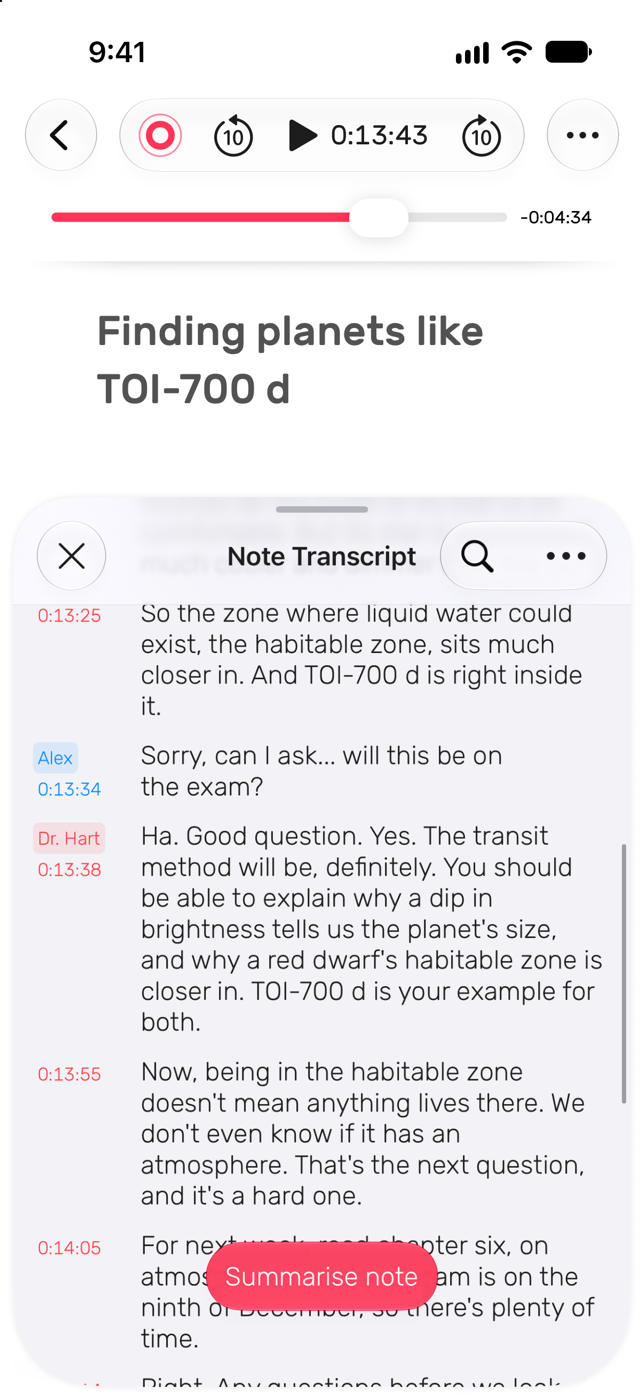
That’s the difference between a pile of recordings and notes you can actually use.
Make revision easier
Keep one notebook per module. When revision starts, everything for that subject is already in one place. Here’s how to organise your notes.
Listen faster. Tap ⋯ and choose a faster Playback Speed, up to 2x. Timestamps and tags still take you to the right moment. More on playback speed.
Skip the quiet parts. Tap ⋯ → Settings and turn on Skip Silence (Intelligent Playback) and Noted skips silence and background noise for you.
Ask your notes a question. Tap ✨ and choose Ask AI, then ask in plain words, like “What were the three causes she mentioned?” Noted finds the answer and takes you to that moment in the recording. Ask AI needs a device with Apple Intelligence. How Ask AI works.
Got a recording from your university? Open a note, tap ⋯ → Import, and add the audio or video. Then tap ✨ and choose Transcribe Audio to get the text. Anything you type is linked to that recording too. How to import a recording.
Lecture online? On a Mac, Noted can record a Zoom, Teams or Google Meet lecture straight into a note.
Revising with friends? Share your notes as a PDF or a web link. Here’s how.
Before you trust a summary
If a point from a summary is going into your essay or revision notes, check it first. Tap its timestamp and listen for a few seconds. It’s the quickest way to make sure the summary got it right.
Try it in your next lecture
Record the lecture, write three lines in your own words, and add one #exam tag when something sounds important.
Next time you revise, start there.
Update to the latest version of Noted on the App Store or Mac App Store.
Let Noted keep the record. You keep the understanding.